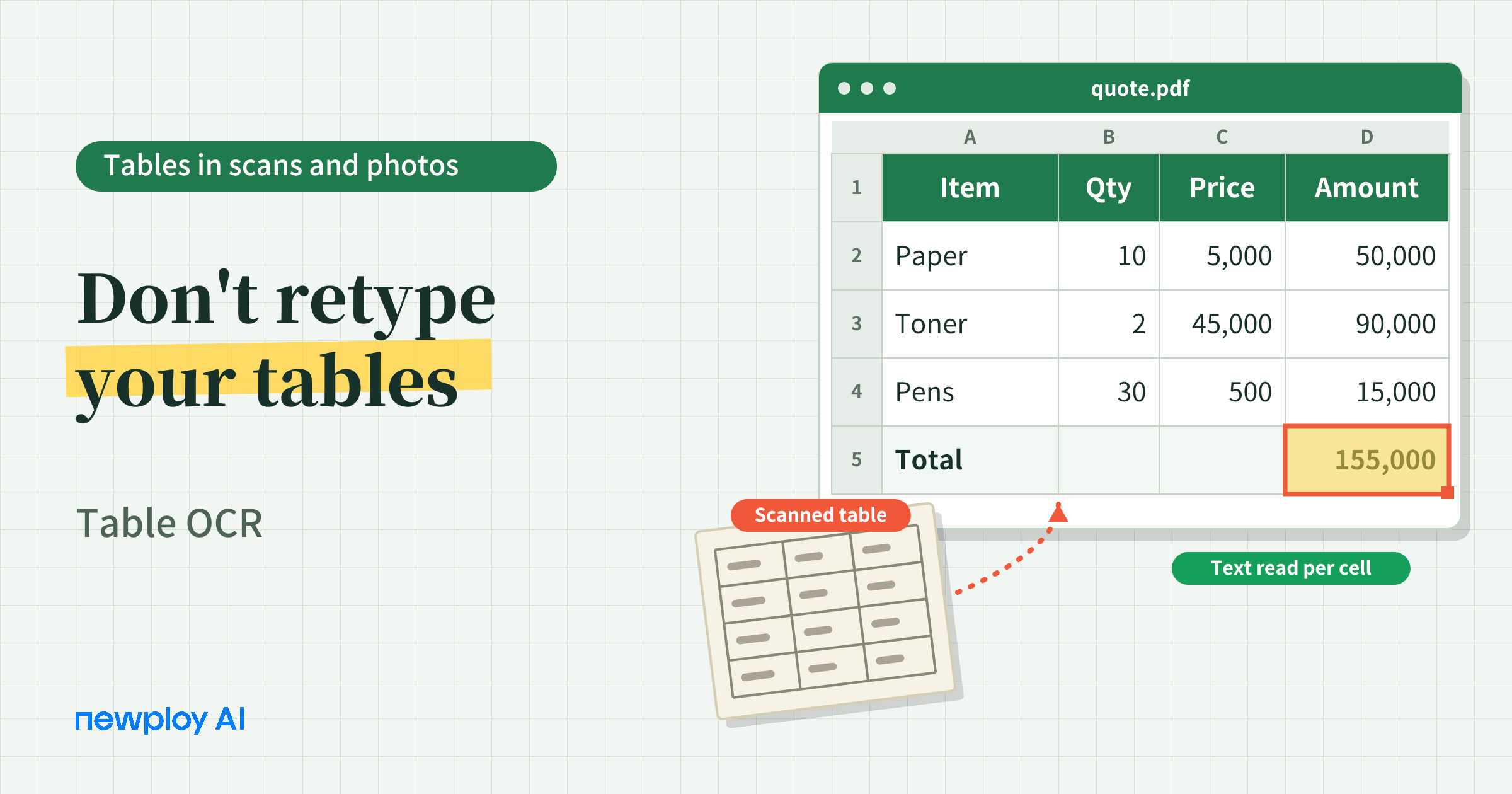
Table OCR reads a table’s rows and columns, not just its text, in scans and photos. This guide shows how Newploy AI reads the text in each cell, the steps to follow, and what to check after pasting into Word or Excel.
Table OCR: How to Read Tables in Scans and Photos, Rows and Columns Included
Table OCR matters the moment a quote, an invoice, or a timesheet arrives as a scan or a photo. You cannot copy the numbers, so you end up retyping them into Excel one by one. On top of that, a single shifted cell can throw the whole table off.
In this guide, we use Newploy AI as the example. You will see how a table’s rows and columns are analyzed and the text in each cell is read, how to use it, and what to check in the result.
What Is Table OCR?
Regular OCR reads a page from top to bottom. Therefore, when it meets a table, text from different cells runs together in one line, and it becomes hard to tell which text belonged to which cell.
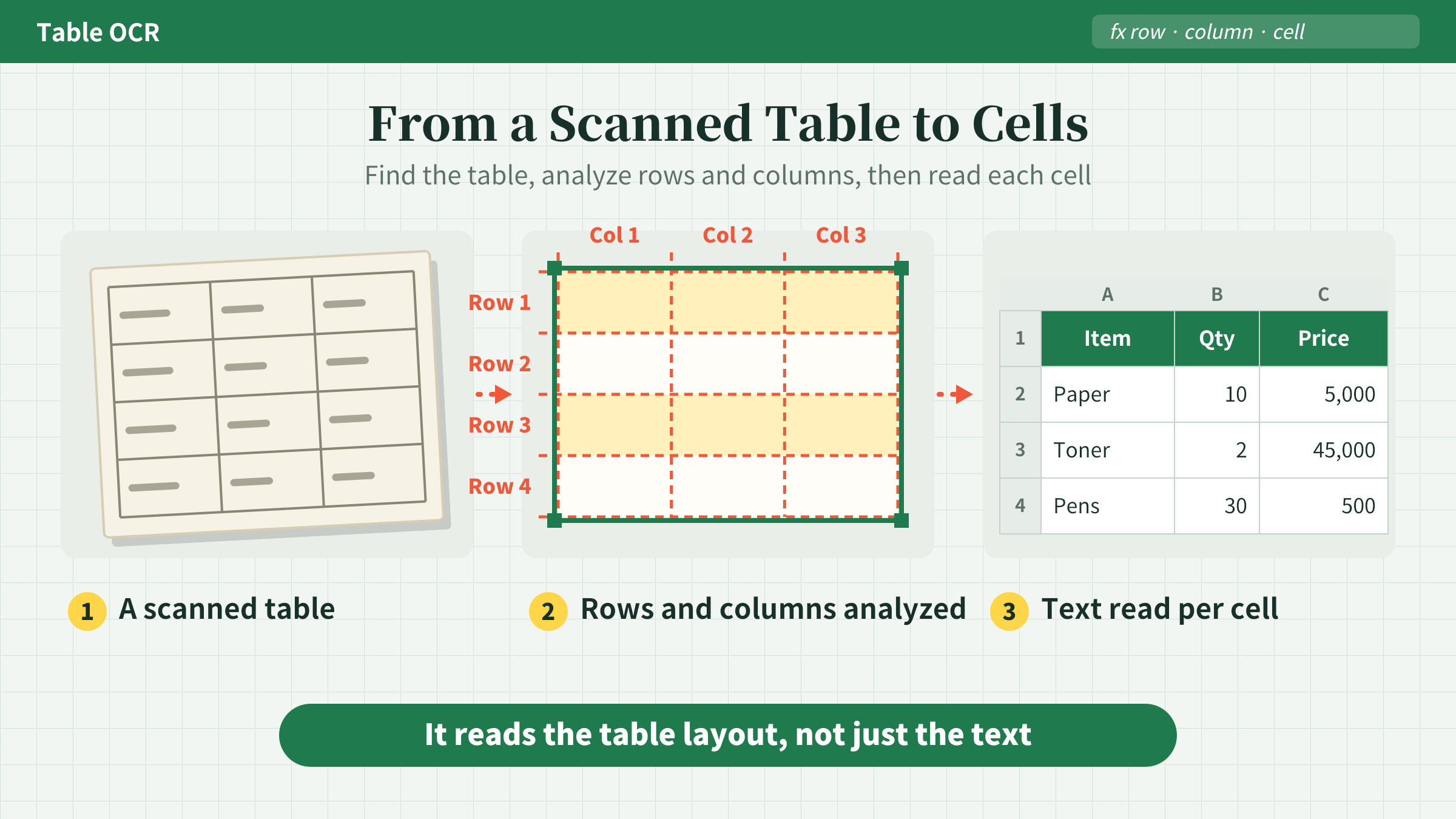
Table OCR first analyzes the rows and columns, and then reads the text inside each cell. Newploy AI includes table structure analysis and cell text OCR as built-in skills, so tables are handled together with their structure.
Regular OCR | Table OCR (Newploy AI) | |
|---|---|---|
How it reads | Characters in order | Analyzes rows and columns, then reads cell by cell |
When it meets a table | Cell boundaries tend to blur | The table area is recognized separately |
Result | One block of text | Text you can check cell by cell |
In short, the difference is reading only the text versus reading the table’s layout too.
What Makes Moving Tables So Painful?
There are three common ways to move a table out of a scan: type it by hand, capture the screen and paste an image, or use table OCR.
Method | Upside | Downside |
|---|---|---|
Typing by hand | You organize it your way | Slow for big tables, and number slips creep in |
Screenshot | Quick to paste | It is an image, so you cannot edit or calculate with it |
Table OCR | Reads the text in each cell | You should compare the result with the original once |
So, the more tables a document has, the more it helps to cut both the retyping time and the limits of an image.
How It Works in Newploy AI
The flow is simple. First, you load a PDF, JPG, or PNG, and layout recognition separates body text, tables, and equations into regions. Next, the rows and columns of the table area are analyzed, and the text in each cell is recognized. Finally, you copy the result and paste it where you need it.
Because regions are read separately, table text does not mix into the body text even in documents that combine both.
Where Can You Paste the Result?
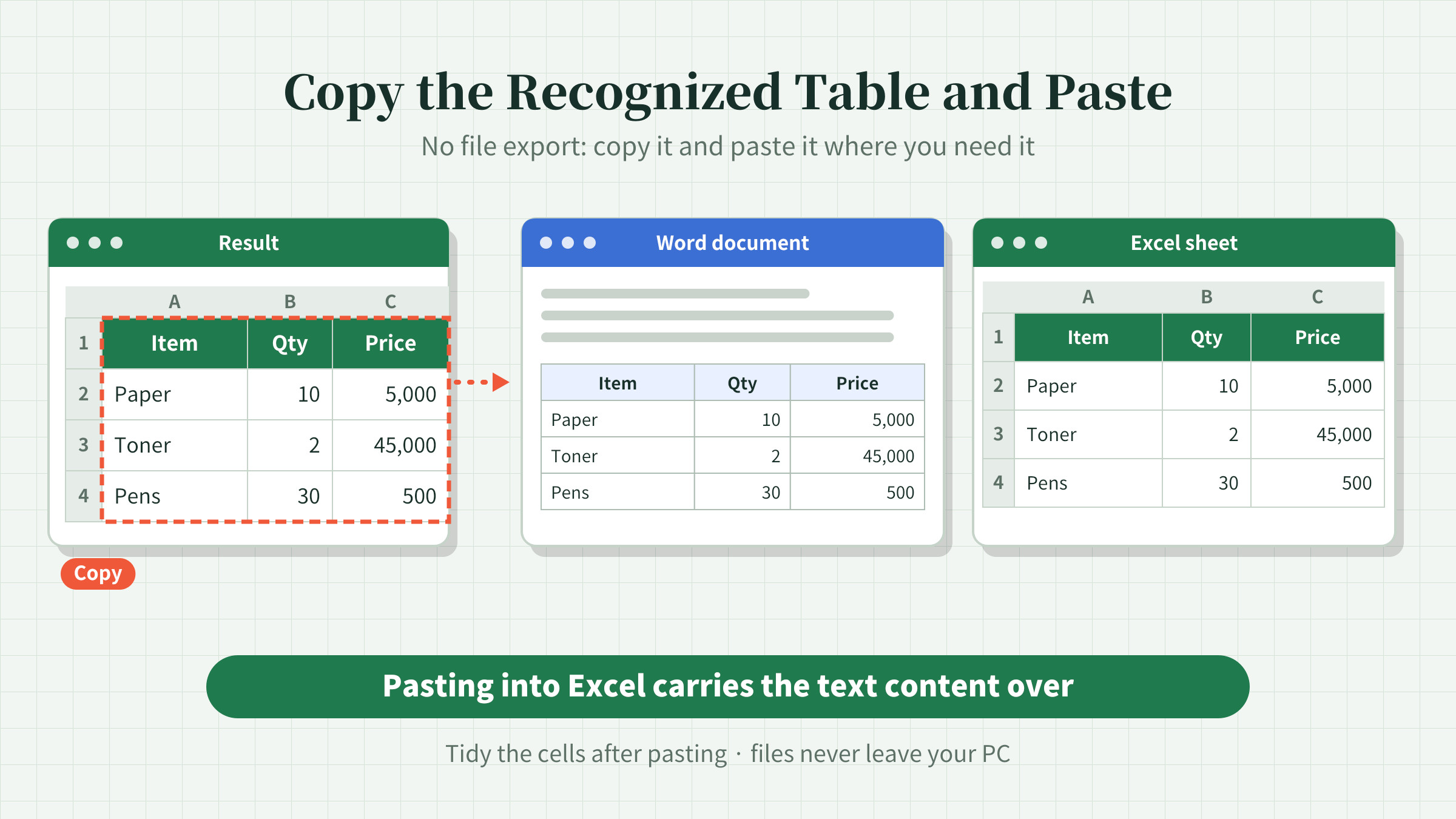
Recognized text is not exported as a file. Instead, you copy and paste it, so you can use it in Word or Excel, and pasting into Excel carries the text content over.
That cuts down on retyping, so only the final paste and cell tidying are manual. Plus, documents are processed on your PC and never sent outside, so tables with client prices or payroll stay private.
How to Check Table OCR Results
One changed number changes a total. Therefore, compare the result with the original before you rely on it. The table below shows where to look first.
What to check | Why it matters |
|---|---|
Number of rows and columns | The cell count should match the original |
Commas and decimal points | A shifted digit changes the amount |
Empty cells | Check whether a cell is truly blank or was missed |
Header cells spanning several columns | Make sure the layout matches the original |
With this short pass, you can review the essentials without rereading everything.
How to Use Table OCR
The steps are short, and the table below keeps you on track.
Step | What to do | Note |
|---|---|---|
1 | Install Newploy AI | It runs on desktops and laptops |
2 | Load a PDF, JPG, or PNG with tables | Move phone photos to your PC first |
3 | Run document recognition | Body, tables, and equations are split into regions |
4 | Review the table area’s result | Compare rows, columns, and numbers with the original |
5 | Copy the result into Word or Excel | Tidy the cells after pasting |
Step 4 matters most. For tables with amounts, always compare the numbers with the original.
Documents That Benefit Most
Tables appear in many kinds of work. The table below lists typical examples.
Document | What the table holds |
|---|---|
Quotes and purchase orders | Items, quantities, unit prices, amounts |
Invoices and receipts | Transactions and totals |
Timesheets and attendance records | Hours by date |
Report cards and evaluation forms | Scores by item |
With documents like these, you need the structure and the text together to make them useful.
Where Table OCR Helps in Practice
Accounting and tax office staff
Client invoices and receipt photos are full of tables. If you recognize the tables and bring them in as text, the time spent retyping every number drops sharply. In addition, files never leave your PC, which eases the worry of handling client records.
HR managers
Timesheets in different formats from each site are a chore to sort out. Therefore, reading the table area separately and pasting it into Excel lets you start the cleanup much sooner. Still, check totals and hours against the original once more.
Sales staff
You often have to move a partner’s quote, sent as a PDF or a photo, into your own template. As a result, bringing items and unit prices in as text speeds up building a comparison sheet.
Frequently Asked Questions
Q. What happens when I paste into Excel?
The text content carries over. Tidy the cell layout after pasting as needed.
Q. Is text inside tables translated?
No. Table text is recognized, but translation applies only to regular text outside tables.
Q. Can I use it without internet?
Yes, once it is installed, document recognition works normally without an internet connection. You only need internet to download the installer.
Q. Does it run on a smartphone?
Not yet. It currently runs on desktops and laptops only. Move photos from your phone to your PC before recognizing them.
Conclusion
The core of table OCR is simple: read a table with its rows and columns, not just its text. Newploy AI recognizes table areas separately, reads the text in each cell, and keeps your files on your PC. If tables fill your documents, install it once and give it a try.
Try it now: Download Newploy AI
Learn more: About Newploy AI
Planning a rollout for your company? Contact us