
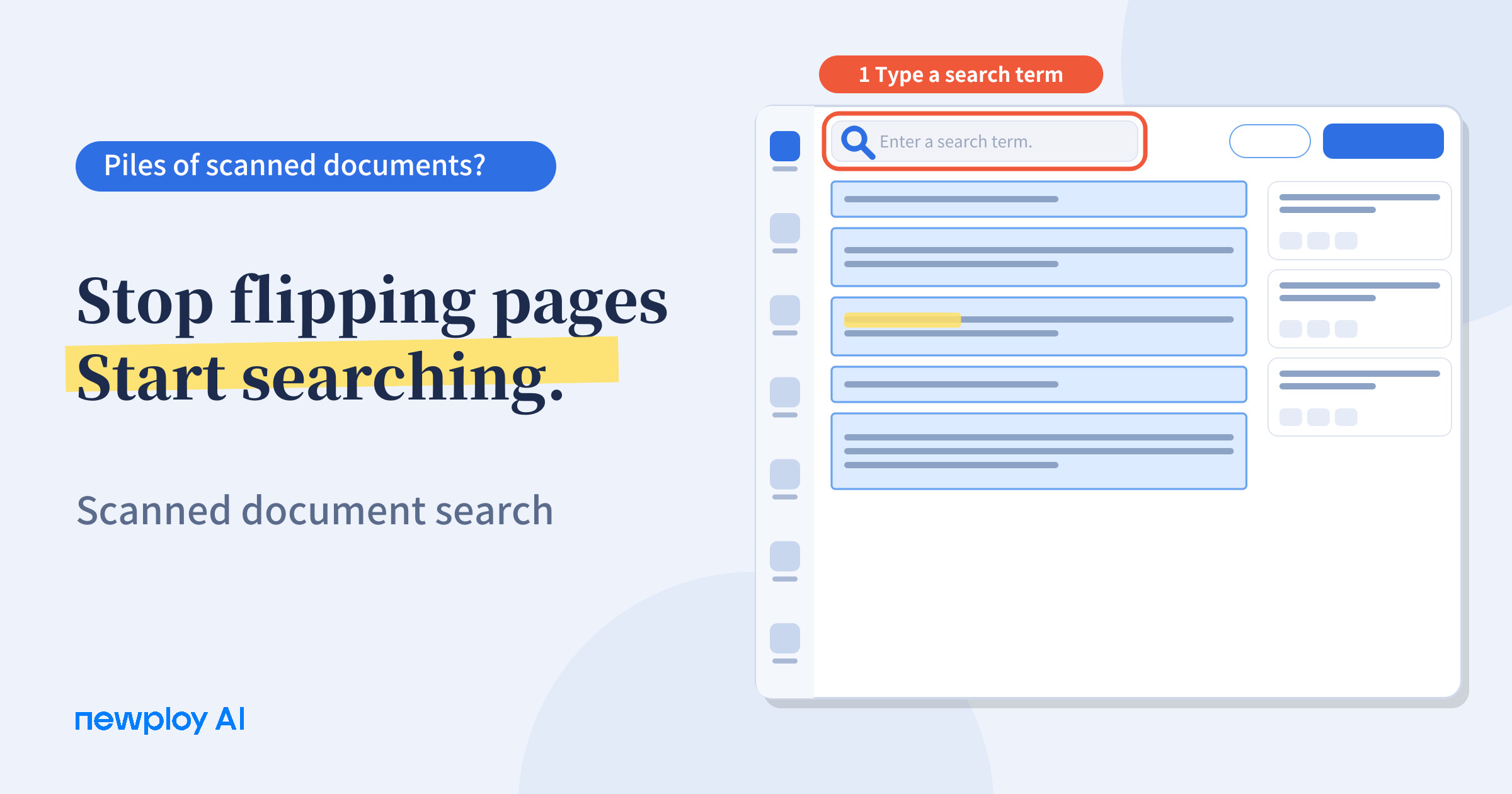
Scanned PDFs are images, so Ctrl+F finds nothing. Convert them to text with OCR, then type a term in the search box to find what you need.
Scanned Document Search: How to Find Text Inside a Scanned PDF
Have you ever opened a scanned contract, pressed Ctrl+F, typed “termination,” and found nothing? The word is right there on the page, yet the search returns zero results. So you end up flipping through the pages one by one, and the longer the document, the longer that takes.
This post explains why scanned documents can’t be searched, and how Newploy AI turns them into text so you can type a search term and find the passage you need.
Why can’t scanned documents be searched?
A scanned PDF or a photographed page looks like text, but to your computer it is a picture, not characters. The search function has no characters to look for.
PDF with text data | Scanned PDF or photo | |
|---|---|---|
How it is stored | Character data | Image |
Ctrl+F search | Works | Usually fails |
Copying text | Works | Not possible |
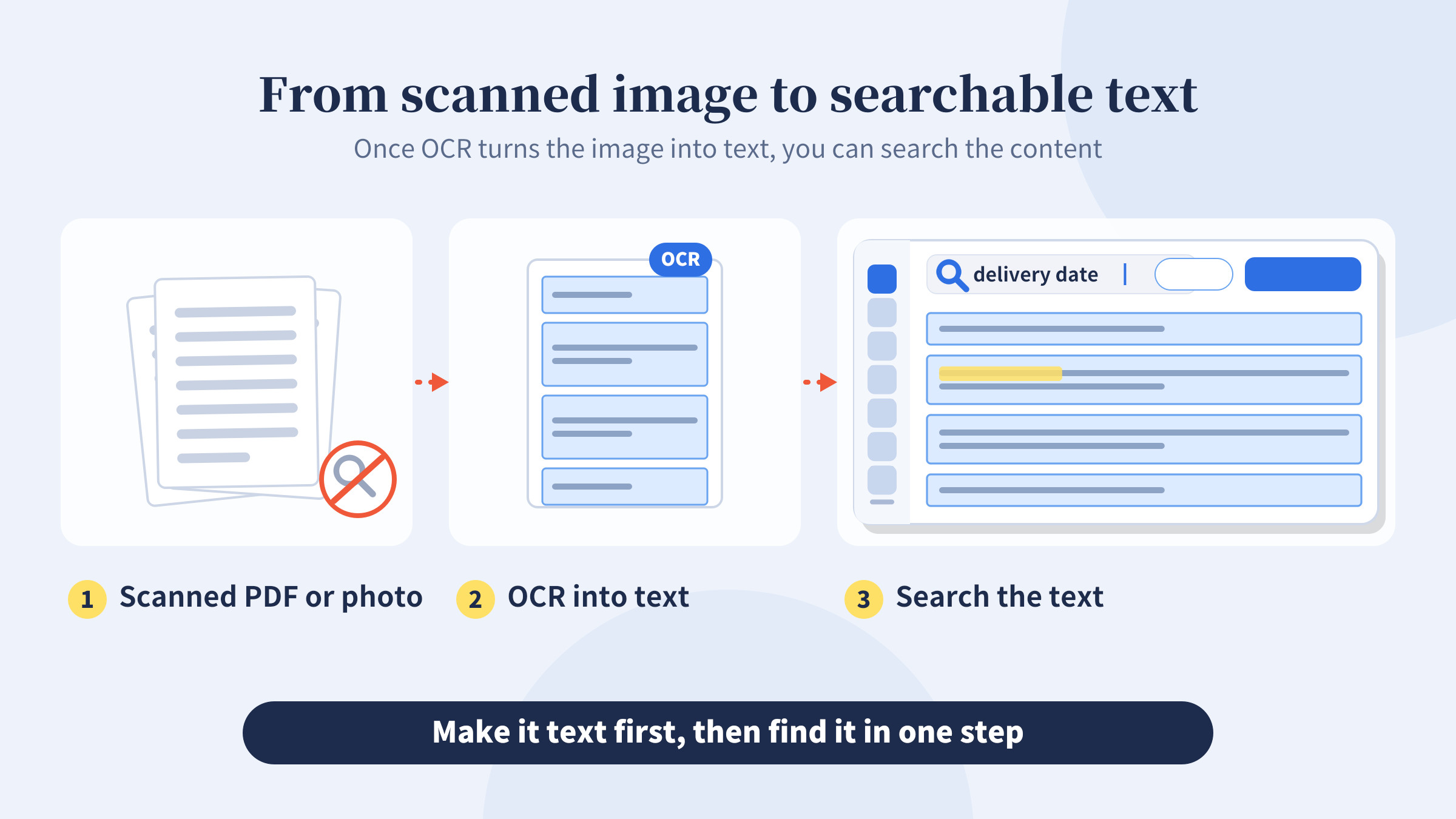
To search a scanned document, you first have to turn the characters in the image into real text. That conversion is what OCR does.
What makes finding content in scans so tedious?
There are three common ways to locate something in a scanned document: flip through it, name your files carefully, or convert it to text with OCR and search.
Method | Upside | Downside |
|---|---|---|
Flipping through pages | No setup needed | Slow for long documents, and easy to miss things |
Careful file names | Finds the right file quickly | Can’t find content inside the file |
OCR, then search | Finds content inside the document | Requires converting to text first |
The longer the document, the more it helps to cut down the time you spend scanning pages by eye.
First, turn the image into text
When you load a PDF, JPG, or PNG into Newploy AI, document layout recognition separates the page into body text, tables, and formulas, and OCR reads the characters in each region. The standard OCR languages are Korean and English. You can review the recognized text region by region, and copy it to paste into Word or Excel.
Everything is processed on your own PC and nothing is sent outside, so documents you would rather not upload, such as contracts or customer records, can be handled with less worry.
Search the converted document
Once OCR is finished, open the document and you will see a search box at the top of the screen. Type the word you are looking for, and you can find it in the converted text of that document.
It works best when you know the exact word, such as a clause number, a product name, or a date. Instead of flipping through scanned pages, you type one word and go straight to the passage.
Check what you found
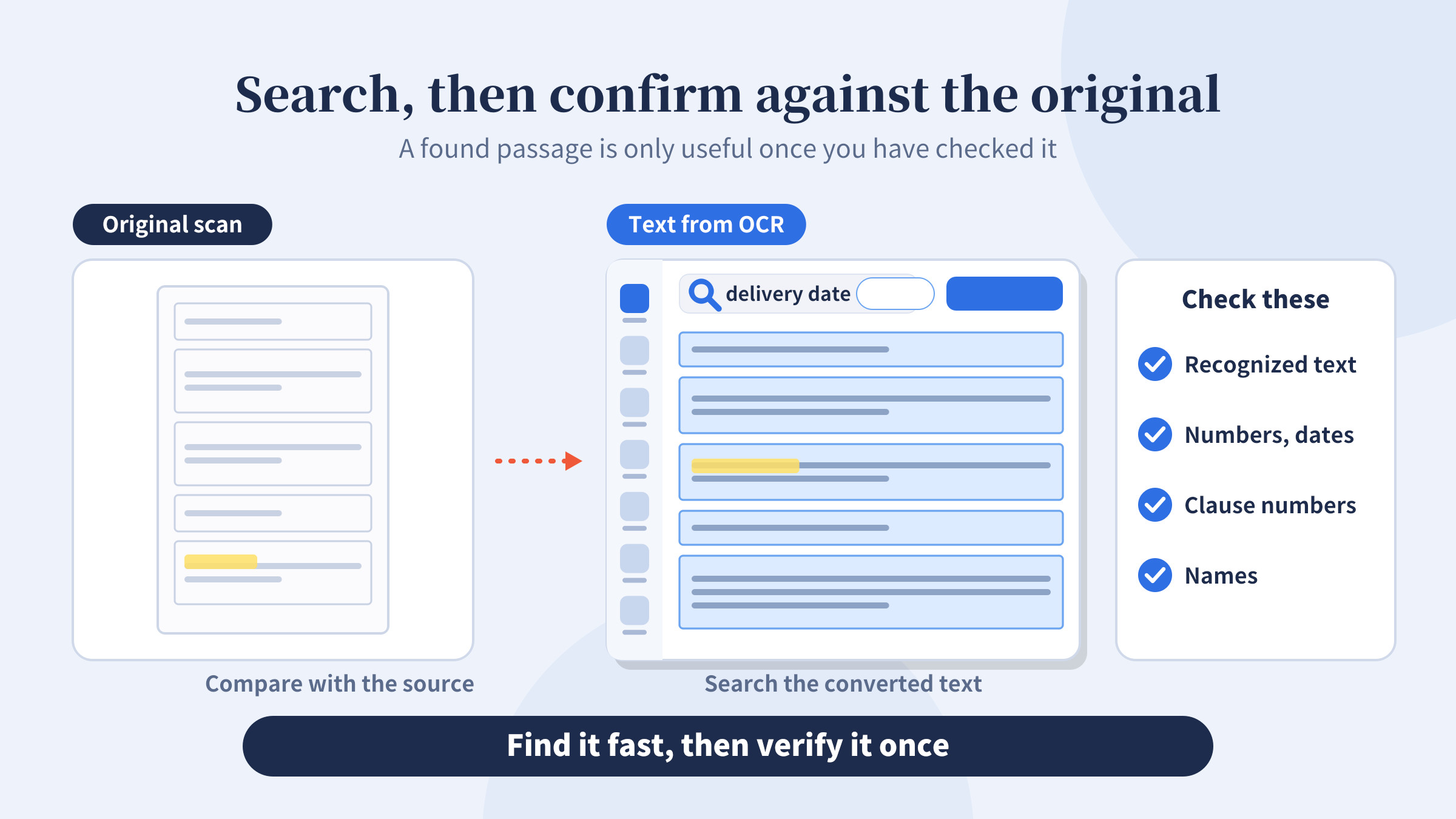
A passage you found is often used in an important decision, so compare it with the original once. These are the places worth a quick look.
What to check | Why |
|---|---|
Recognized characters | Look for similar-looking characters that were misread |
Numbers and dates | A changed period or amount changes the meaning |
Clause numbers | Confirm the passage is in the clause you expect |
Names | Confirm company and person names match the source |
A quick check like this lets you use what you found with confidence.
How to search a scanned document
The steps are simple. Follow the table below and you won’t get lost the first time.
Step | What to do | Note |
|---|---|---|
1 | Install Newploy AI | Runs on desktops and laptops |
2 | Load your scanned PDF, JPG, or PNG | Move phone photos to your PC first |
3 | Run document recognition | Body, tables, and formulas are separated and converted to text |
4 | Open the document and type a term in the search box | Use the exact word you want to find |
5 | Compare the result with the original | Focus on numbers and clause numbers |
Step 5 matters most. For important documents, always compare what you found with the original.
Documents where this helps most
People scan many kinds of documents. Here are some common ones.
Document | What you look for |
|---|---|
Contracts and agreements | Termination terms, contract period, penalties |
Receipts and statements | A particular vendor or amount |
Official notices and internal rules | A set procedure or standard |
Manuals and textbooks | A specific term or explanation |
Once these are converted to text, you can jump straight to the content whenever you need it.
Who benefits most
Legal and general affairs staff
Most people who handle contracts have flipped through dozens of pages from start to finish just to find one termination clause. Searching “termination” in the converted document can cut that search time sharply. And because the document never leaves your PC, handling a contract feels less risky.
Accounting and tax office staff
Finding one vendor in a long, complicated statement sent by a client is tedious. Converting the photo to text and searching the vendor name gets you to the part you need to check. Still, compare the amounts with the original once more.
Graduate students and exam candidates
Finding where a term appears in a scanned textbook or reference takes a long time. Converting the material to text and searching the term saves study time.
Frequently asked questions
Q. Why can’t I search a scanned PDF with Ctrl+F?
Because a scanned PDF is stored as an image, not as characters. Once OCR turns the characters in the image into text, you can search by content.
Q. Where do I type the search term?
After OCR is complete, open the document. The search box is at the top of the screen. Type your term there.
Q. Can I use it without an internet connection?
Yes, once it is installed. Document recognition works in environments without internet. You do need an internet connection to download the installer.
Q. Can I use it on a smartphone?
Not yet. It runs on desktops and laptops only. Move photos from your phone to your PC before recognizing them.
Q. What if I want to ask about a whole document, not search for one word?
Newploy AI also has an AI chat feature that lets you summarize and discuss documents you have converted. We will cover it in a separate post.
Wrapping up
The key to scanned document search is turning the characters in the image into text first. After that, you type a term and go straight to what you need. Newploy AI reads documents on your PC and converts them to text without sending anything out. If you often hunt for content in scanned documents, install it and give it a try.