How on-device OCR turns PDFs and images into text on your own computer, what it can read, and how to start.
On-Device OCR: Turn PDFs and Images into Text Without Uploading Anything
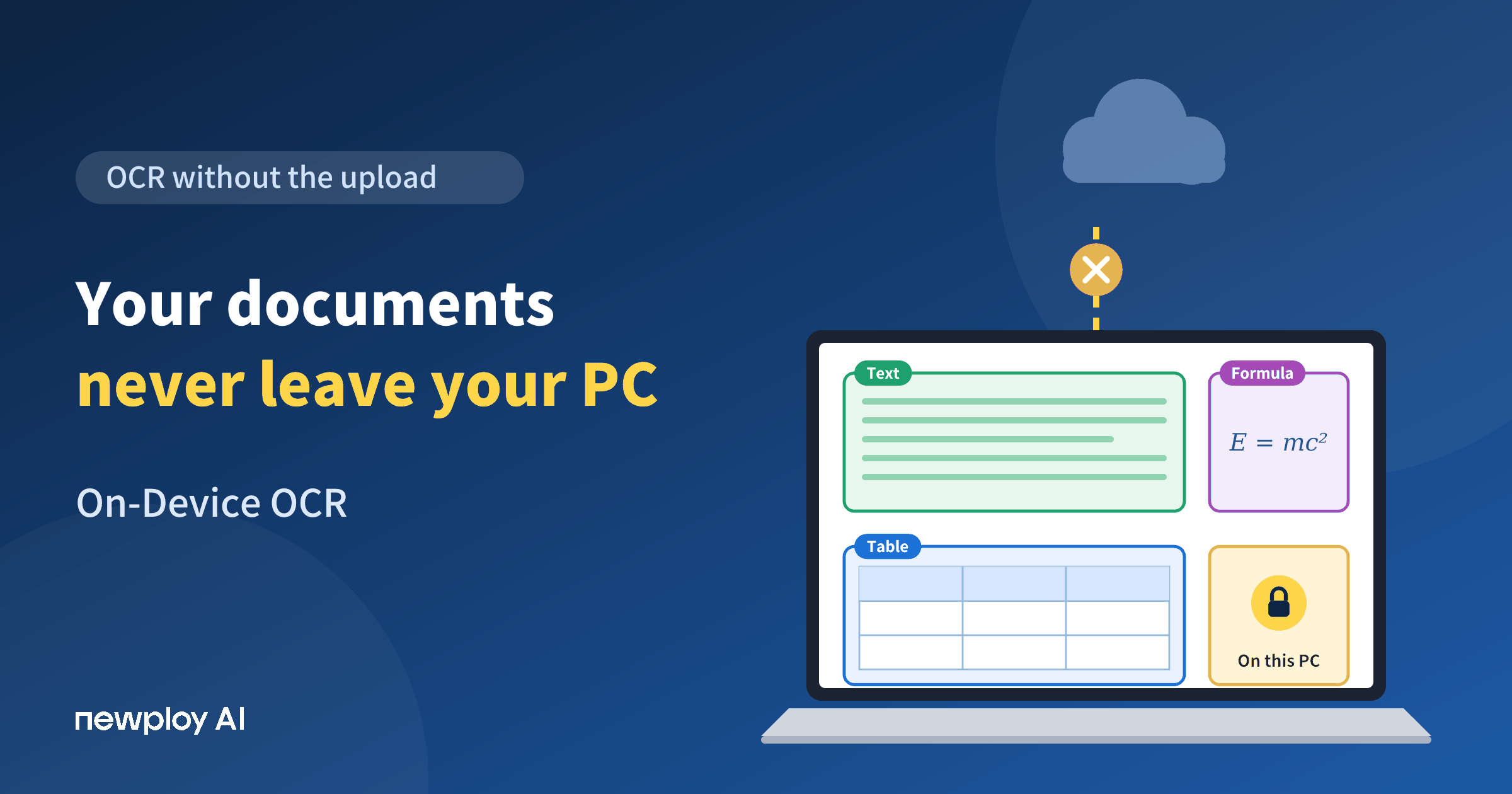
On-device OCR means your documents are read on your own computer and never sent anywhere else. That sounds like a small technical detail, but it changes a lot. Most OCR tools ask you to upload a file to a website first, so a contract, a payslip, or a customer record leaves your machine the moment you scan it.
In this guide, we’ll use Newploy AI to show what on-device OCR is, what it can read, and how to get started. We’ll also be upfront about what it does not do yet.
What Is On-Device OCR?
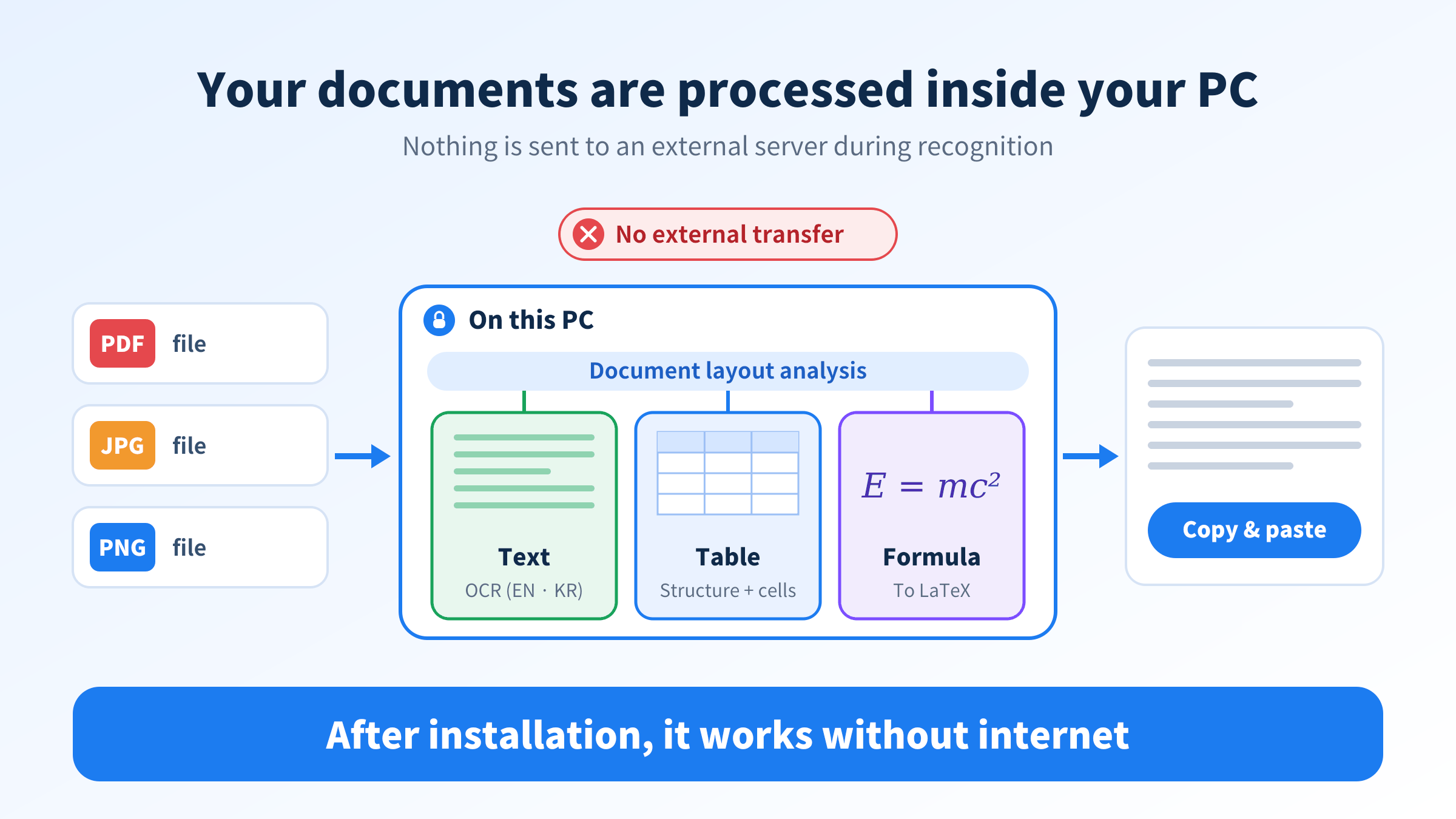
OCR (optical character recognition) turns text in scans, photos, and image-based PDFs into text a computer can use. With on-device OCR, the whole recognition process runs on your computer. In other words, your document data is not sent to an external server.
Newploy AI is desktop software that you install on a desktop or laptop. So when you add a PDF, JPG, or PNG file, it is processed right there on that machine.
Typical cloud OCR | On-device OCR (Newploy AI) | |
|---|---|---|
Where the document is processed | External server | Your own computer |
File transfer | Upload required | No external transfer |
Internet connection | Needed every time | Not needed after installation |
Sensitive documents | Often a judgment call | Stays on your machine |
Why Does On-Device OCR Matter?
There are three main reasons. First, your documents stay on your computer. Many companies have security rules against sending internal files to outside services, and processing on the PC helps you avoid conflicts with those rules.
Second, it depends less on your connection. If recognition needed the internet every time, work would stop on a business trip or inside a closed network. Third, there is no upload-and-wait step. You choose a file, run recognition, and review the result in the same window.
Ultimately, on-device OCR is less about how the technology is built and more about how your documents are handled. That is why it matters most to people whose documents are their work.
What Can On-Device OCR Read?
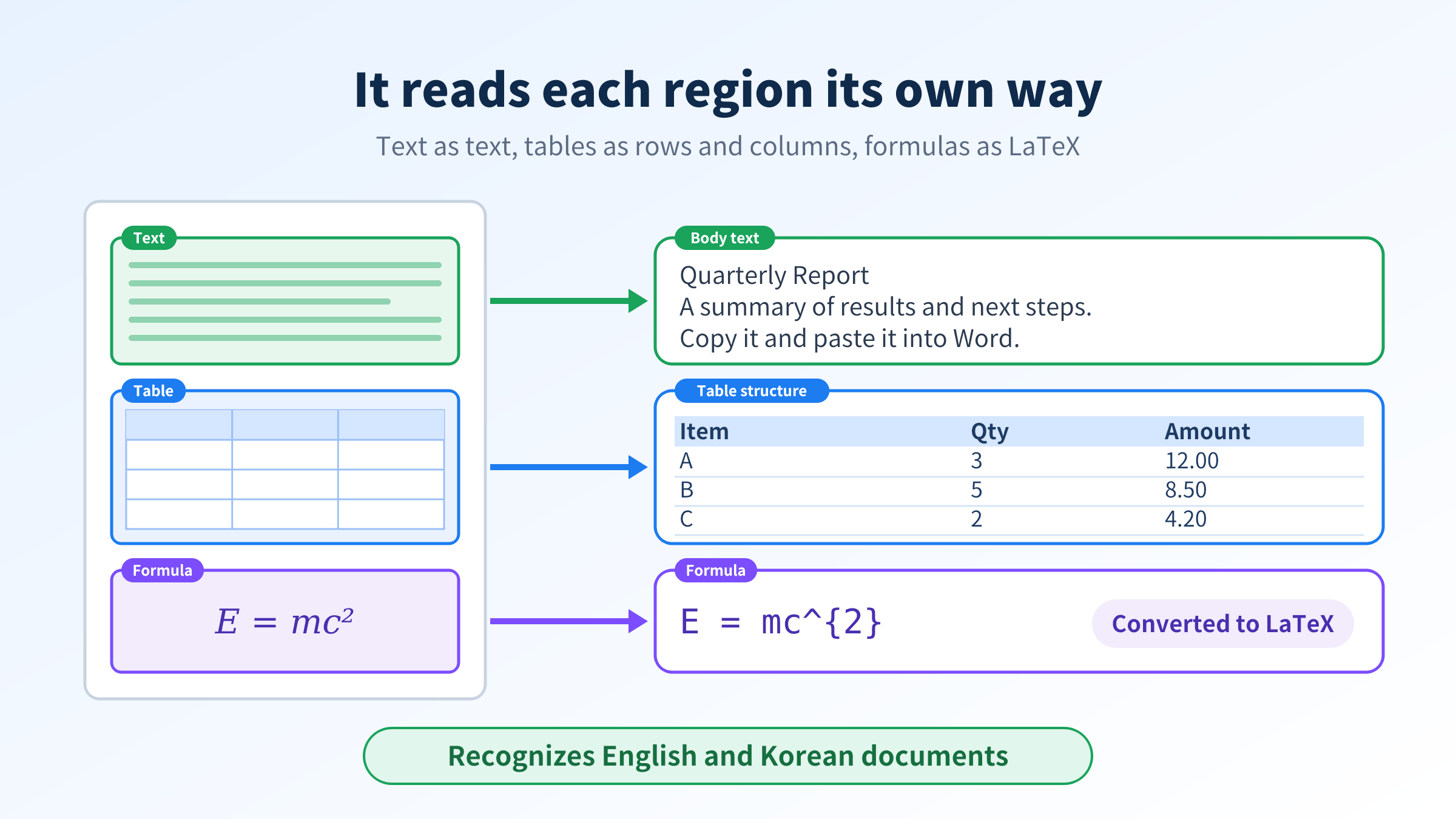
Many people think of OCR as a tool that only reads letters. However, Newploy AI first splits a page into regions, then reads each region the way it deserves. Body text is read as text, tables as rows and columns, and formulas as LaTeX.
What it reads | How it works | Useful when |
|---|---|---|
Body text | English OCR, Korean OCR | Turning scanned contracts or letters into text |
Page structure | Document layout analysis | Separating text, tables, and formulas |
Tables | Table structure analysis and cell text recognition | Understanding rows and columns in statements |
Formulas | Formula OCR (converted to LaTeX) | Moving equations out of papers and textbooks |
Translation | Korean ↔ English translation | Reading documents in either language |
There are two limits worth knowing. First, Newploy AI currently recognizes English and Korean text. Second, translation applies to regular text outside of tables, so text inside a table is not translated.
How to Get Started with On-Device OCR
Getting started is simple. Install the software once, then add a document and run recognition.
Step | What you do | Note |
|---|---|---|
1 | Download and install Newploy AI | Internet is needed only to download the installer |
2 | Add a PDF, JPG, or PNG file | Scans and photos both work |
3 | Run recognition | The page is read region by region |
4 | Review the result | Check the text you need |
5 | Copy and paste | Paste into Word or another document |
One thing to note: recognized text is used by copying and pasting it into your document, not by exporting a converted file. So retyping text by hand mostly disappears, but the final paste is still up to you.
Offline OCR That Works Without Internet
On-device OCR shines most when the connection is poor or missing. Once installed, Newploy AI recognizes documents normally even with no internet connection at all.
That helps in offices that block outside internet access, on a flight, or on a business trip with unstable Wi-Fi. Of course, you need internet to download the installer in the first place, and features that rely on the web, such as web search, work only while you are online.
Who Is On-Device OCR For?
Offices that handle client paperwork
Accounting and legal offices receive documents full of personal and business details all day. Uploading each one to an outside site feels risky. With on-device OCR, however, documents are processed on the computer itself, so there is less to worry about. This matters even more when your promise to clients is that their paperwork is handled with care.
Students and researchers
Retyping equations from a paper or textbook takes a long time. Formula OCR converts them into LaTeX instead, so you don’t have to enter the same formula twice. Plus, your work doesn’t stop if the Wi-Fi drops while you are organizing a paper.
Professionals working in English and Korean
If you switch between Korean and English documents, copying text into a separate translation site gets tiring fast. Because translation is built into the same program, you can keep your documents in one place.
Frequently Asked Questions
Q. Can I use it on a smartphone?
Not yet. Newploy AI is installed on a desktop or laptop and isn’t available on smartphones.
Q. Does it really work without internet?
Yes. After installation, document recognition works normally with no internet connection.
Q. Which languages does it recognize?
Currently English and Korean.
Conclusion
The point of on-device OCR is not only reading text. It is reading your documents without sending them anywhere. Newploy AI keeps processing on your computer while still reading text, tables, and formulas region by region. For sensitive documents, and for places with unreliable internet, that difference matters even more.
Try it now: Download Newploy AI
Learn more: Newploy AI
Ask about adoption for your team: Contact us