
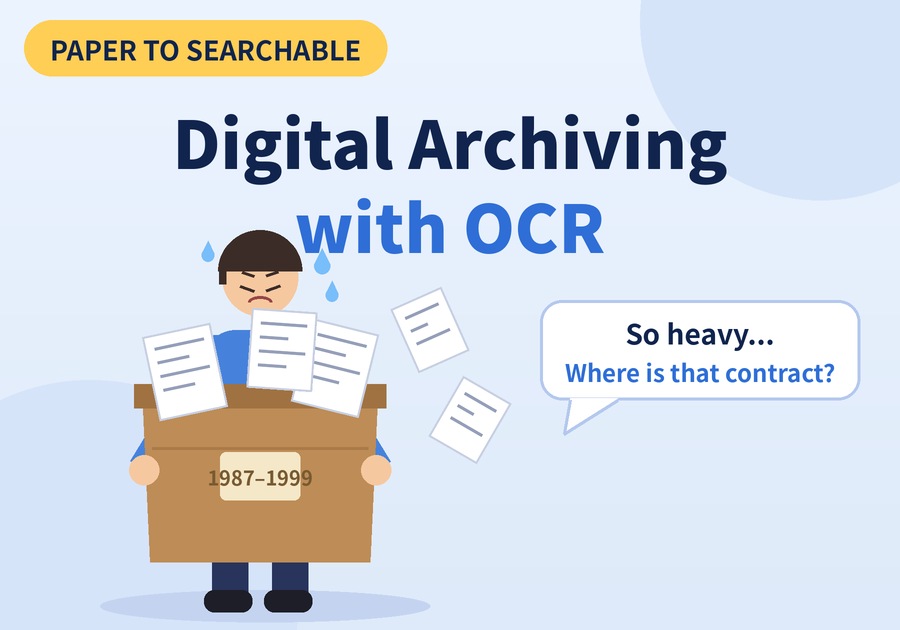
Learn how to scan old paper documents and use OCR to keep them as searchable digital records.
Archive Old Paper Documents with OCR
Each and every sheet in your file boxes becomes a document you can search right on your own computer.
That change is what OCR document archiving brings. Once you scan a paper document and let OCR read its text, a file you only stored becomes a record you can search. Let's walk through how it works, step by step.
1. Why Old Documents Need OCR Document Archiving
First, let's compare the common ways of keeping documents.
Method | Strength | Drawback |
|---|---|---|
Keep the paper | Preserves the original | Takes space and is hard to search |
Scan only | Saves space | Images cannot be searched by text |
OCR archiving | Text can be searched and copied | Results need a quick check |
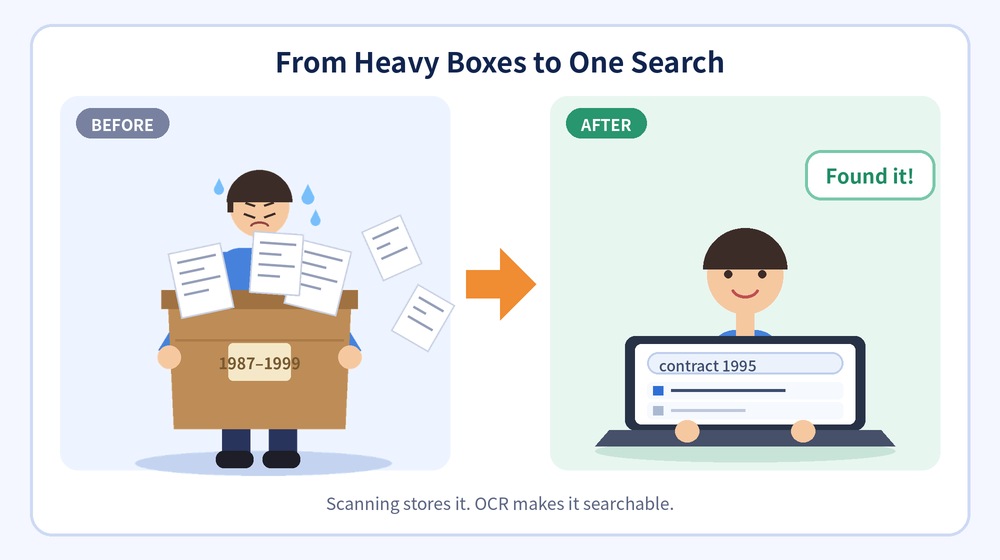
As the table shows, scanning alone saves space, but the content is still hard to find. In contrast, OCR document archiving lets you search and copy the text. Scanning only stores a document, while OCR makes it usable.
2. How OCR Document Archiving Works
So what does the process look like in practice? Here it is in four steps.
Step | What you do |
|---|---|
① Select | Start with documents you keep or search often |
② Scan or photograph | Create image files with a scanner or camera |
③ Recognize | OCR reads the text, tables, and layout |
④ Review and save | Compare with the original, then save to Excel, PDF, or HWPX |
In OCR document archiving, the program reads paragraphs and tables as structure, not just plain text, so ledgers and forms full of tables are easier to organize. In addition, OCR document archiving happens on your PC, so old personal records and internal files can be handled with less worry.
3. Scanning Tips Before OCR Document Archiving
However, old documents come in all conditions, so OCR document archiving works best with good scans. A few habits make a clear difference.
Tip | Why it helps |
|---|---|
Flatten creases and folds | Keeps text lines from bending |
Use even light and avoid shadows and glare | Keeps the text sharp |
Scan or shoot straight on | Reduces skew and distortion |
Check faded or blurry parts against the original | Catches recognition errors |
For faded paper in particular, compare the result with the original once. Let OCR do the reading, and have a person check only the key parts, so your OCR document archiving stays reliable.
Getting Started with OCR Document Archiving
Newploy AI is an on-device document AI, so recognition happens on your PC. In addition, it runs on a CPU alone, so a standard office PC is a fine place to start. Recognized documents are included in the knowledge base for document search and AI chat, so you can also look up your archive by asking questions.
You do not need to move every document at once. Start with one box you expect to look through this week. The basic OCR feature of Newploy AI is free for both individuals and businesses, and you can start using it right away.
You can download it at newploy.ai/download.