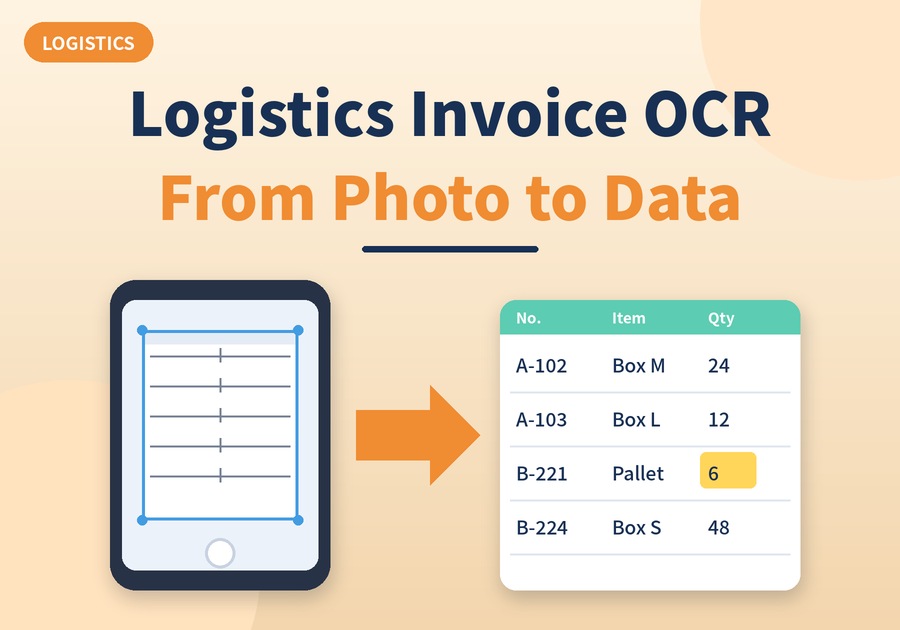
Learn how to turn photos of logistics invoices and work orders into Excel-ready data on your own PC.
Turn Photos of Invoices and Work Orders into Data
Delivery invoices pile up fast, and work orders still arrive on paper. Typing each one into a spreadsheet takes time, and small typos are easy to make.
That is why more teams are turning to logistics invoice OCR. In short, you take a photo, and the text and tables become data you can edit. So how does it work, and what should you check first? Let's go through it step by step.
1. Why logistics invoice OCR Fits Field Work
First, let's compare the usual ways of getting paper data into a system.
Method | How it works | Common concern |
|---|---|---|
Manual typing | Read the paper and type it in | Slow, and typos creep in |
Cloud OCR service | Upload photos to an external server | Customer details leave your PC |
Local logistics invoice OCR | Photos are recognized on your own PC | Blurry shots need a quick check |
As the table shows, typing costs time, and uploading raises questions about where customer details go. In contrast, local logistics invoice OCR keeps documents on your PC. As a result, you can handle names, addresses, and phone numbers with less worry.
2. How logistics invoice OCR Turns a Photo into Data
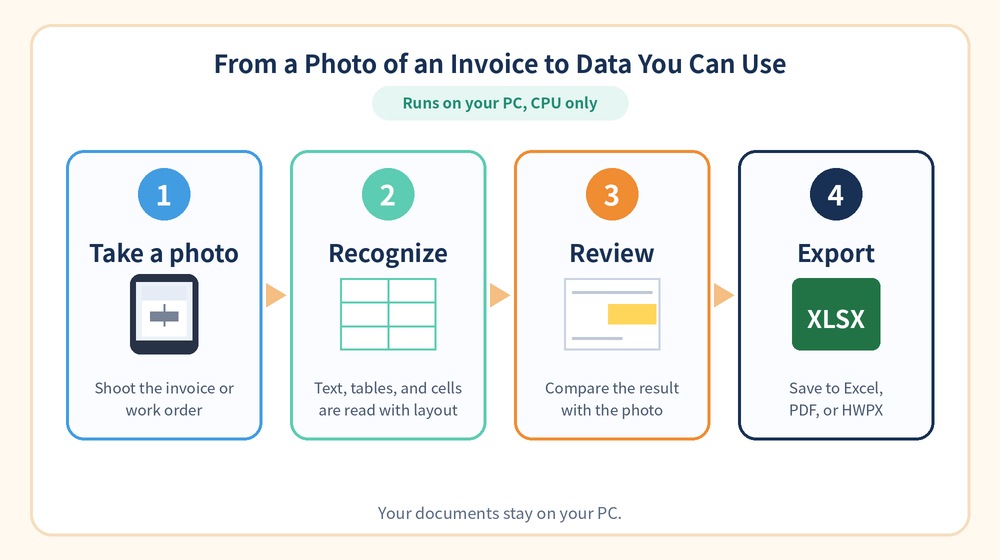
So what happens after you press the button? In fact, the flow is simple.
Step | What happens |
|---|---|
① Take a photo | Shoot the invoice or work order with a phone or camera |
② Recognize | Text, tables, and cells are read with the layout kept |
③ Review | Compare the result with the original photo |
④ Export | Save the data to Excel, PDF, or HWPX |
Importantly, the program reads tables and cells, not just plain text. Therefore, the rows on an invoice stay organized as rows. In addition, it runs on a CPU alone, so even a GPU-free office PC can handle logistics invoice OCR.
3. Photo Tips for Better logistics invoice OCR Results
In the field, photos are rarely perfect. Still, a few habits make a clear difference.
Tip | Why it helps |
|---|---|
Shoot straight from above | Keeps lines and columns from skewing |
Use even light and avoid glare | Keeps small print readable |
Flatten creases and fill the frame | Stops text lines from bending |
Hold the phone steady | Prevents motion blur |
For example, a crumpled invoice is worth flattening for a few seconds before you shoot. Likewise, a quick retake is usually faster than fixing a blurry result later.
Logistics invoice OCR in Daily Work
Finally, here is where this approach tends to help the most.
Setting | Documents | Benefit |
|---|---|---|
Warehouse receiving | Delivery invoices | Enter data without retyping |
Field service | Work orders | Photograph on site, organize later |
Back office | Batches of paper slips | Export to Excel in one go |
Newploy AI is an on-device document AI that runs on a CPU alone, and its basic OCR is free. The internet is used only for updates and skill downloads, so documents stay on your PC. If colleagues are on the same network, documents can also be shared over the LAN without the internet.
You do not need to change everything at once. Tomorrow, photograph just five invoices from the morning batch, and compare the time with typing them by hand. If it saves you time, add more.
You can read more at newploy.ai.