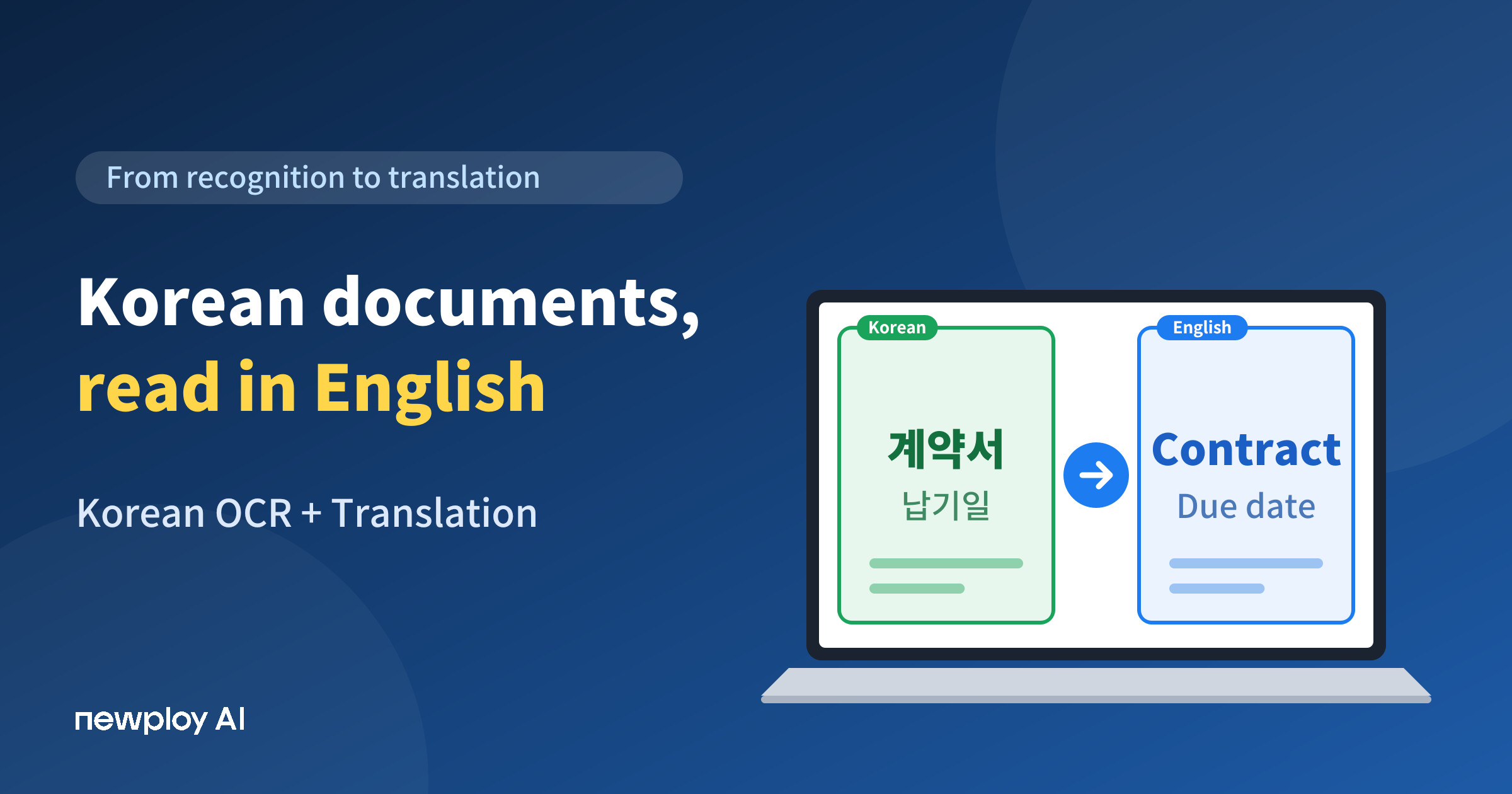
Korean OCR reads Hangul documents and translates body text into English in one place. See where translation applies and how to start.
Korean OCR: How to Read Korean Documents and Translate Them into English
Korean OCR becomes essential the moment a Korean contract lands in your inbox as a scan or a photo. You cannot copy the text, so you cannot paste it into a translator either. As a result, retyping Korean characters often takes longer than the translation itself.
In this guide, we use Newploy AI as the example. You will see how Korean text goes from a scanned page to English in one place, where translation applies, and the order to follow.
What Is Korean OCR?
OCR turns the text in scans, photos, and image PDFs into text a computer can read. Korean OCR does this for Korean-language documents, so the characters become text you can select and copy.
Newploy AI includes Korean OCR and English OCR out of the box. Moreover, Korean-to-English and English-to-Korean translation is built in as its own skill, so you do not need a separate translator. That means you can recognize and translate in the same place instead of moving text between tools.
Typing it out | OCR + separate translator | Newploy AI | |
|---|---|---|---|
Getting the text | Retype by hand | Recognize, then copy | Recognize straight from the document |
Translation | Paste into a translator | Paste into a translator | Korean↔English skill built in |
Where the file goes | A translator website | Two programs | Processed on your PC |
In short, retyping disappears and the toolchain shrinks to one.
Why Korean Documents Are Tricky
Korean documents are rarely plain text. Contracts and quotes contain tables, while reports mix headings, body text, and formulas. Therefore, if text is simply read top to bottom, table cells and body text get tangled together.
To avoid that, Newploy AI recognizes the document layout first. It separates body text, tables, and formulas into regions, so you can check each region’s text on its own. In addition, it analyzes a table’s rows and columns and recognizes the text inside each cell.
From Recognition to English Translation
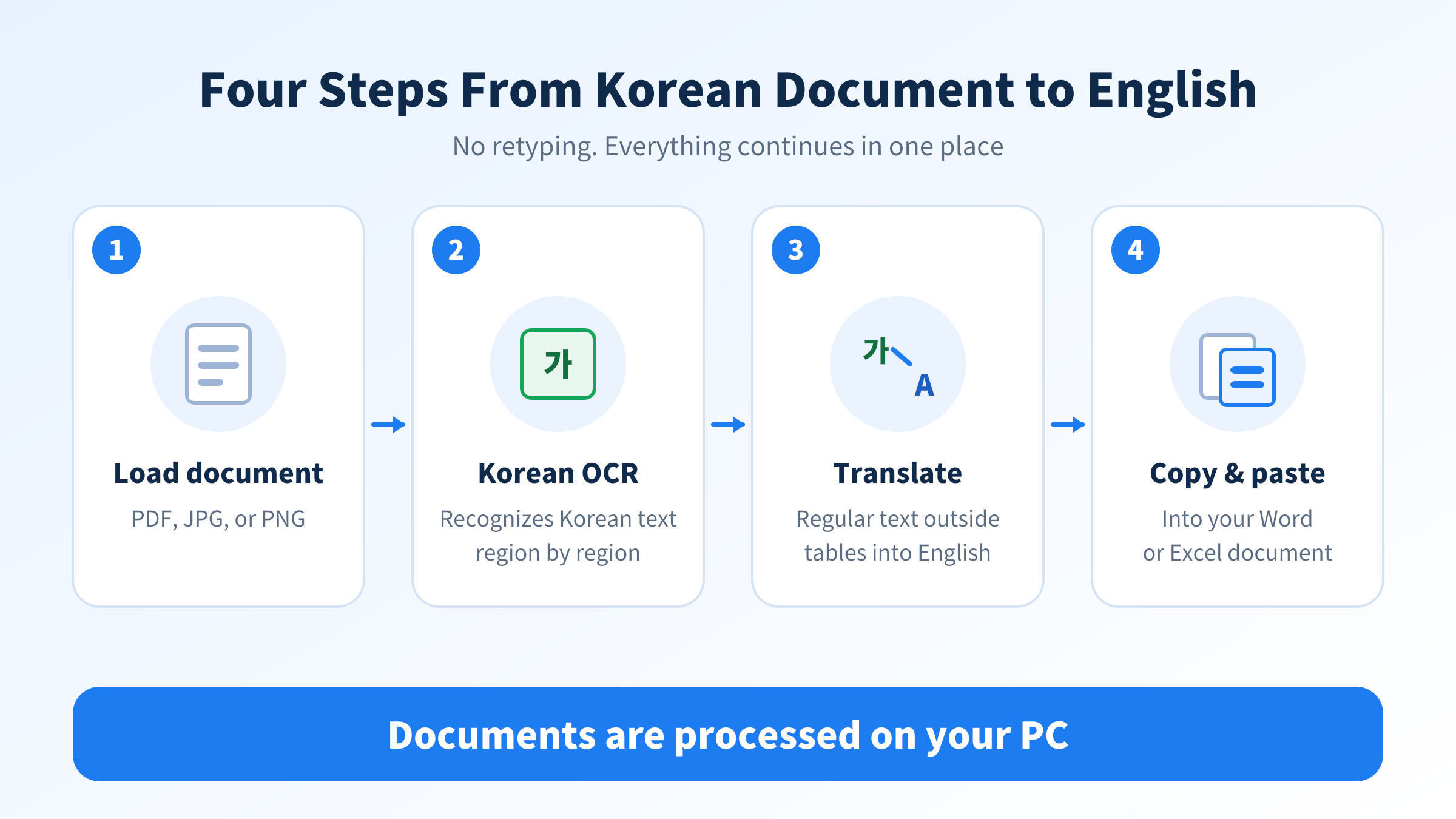
The flow is simple. First, you load a PDF, JPG, or PNG, and Korean OCR recognizes the Korean text. Next, the recognized Korean body text is translated from Korean to English. Finally, you copy the result and paste it into Word or Excel.
Recognized text is not exported as a file. Instead, you copy and paste it, so only the final paste is manual. Pasting into Excel also carries the text content over, which helps when you need to sort out table text separately. Better still, documents are processed on your PC and never sent outside, which is reassuring for sensitive files such as contracts exchanged with overseas partners.
Where Translation Applies, and Where It Doesn’t
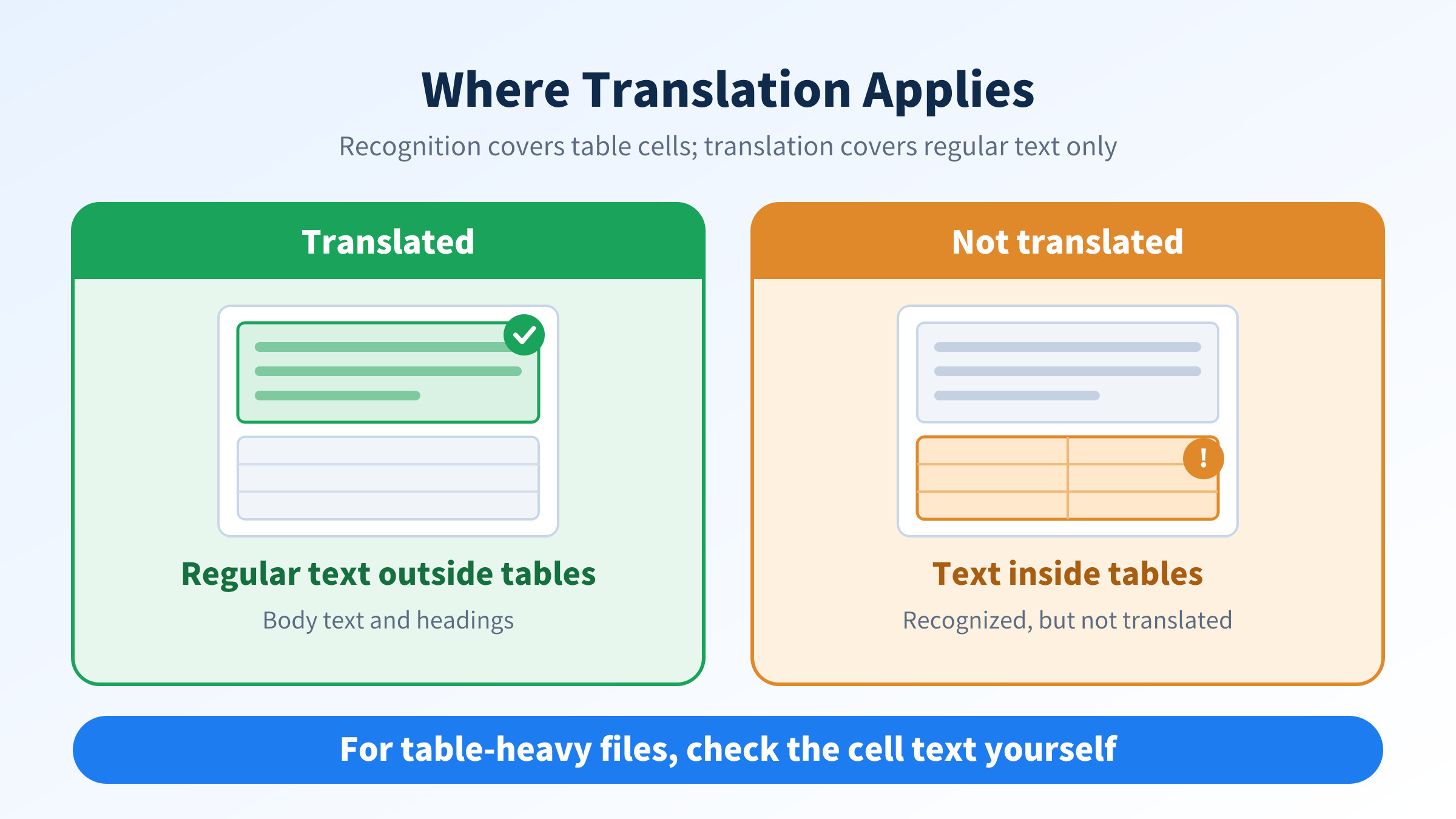
One point is worth knowing up front. Korean OCR reads text inside tables, but translation applies only to regular text outside tables. In other words, text in table cells is recognized but not turned into English.
Recognition (OCR) | English translation | |
|---|---|---|
Body text and headings outside tables | Yes | Yes |
Table rows and columns | Structure analysis | Not applicable |
Text inside table cells | Recognized | Not translated |
Formulas | Recognized as LaTeX | Not applicable |
So, for table-heavy documents, use the translation for body text and handle table cells yourself by reading the recognized Korean.
Which Documents Fit Best
Different documents benefit in different ways. Knowing this in advance shows you where to spend your attention.
Document type | How to use it |
|---|---|
Notices and official letters with mostly body text | Recognize the body and translate it as it is |
Contracts and quotes with many tables | Translate the body, then read the recognized Korean for table cells |
Reports with formulas | Recognize formulas as LaTeX and check them separately |
With this split, you can see which parts of a single document are automatic and which need your eyes, so review time actually shrinks.
How to Use Korean OCR and Translation
The steps are short, and the table below keeps you on track.
Step | What to do | Note |
|---|---|---|
1 | Install Newploy AI | It runs on desktops and laptops |
2 | Load your Korean PDF, JPG, or PNG | Move phone photos to your PC first |
3 | Run Korean OCR | Body, tables, and formulas are read by region |
4 | Translate the body text outside tables | Table cell text is not translated |
5 | Copy the result into Word or Excel | Read the final wording once yourself |
Step 5 matters most. Wording can vary by document type, so for important files such as contracts, give the final text one careful read.
Where This Helps in Practice
Sales staff working with Korean partners
If you must reply to a Korean quote or brochure in English, you can recognize the text and translate it directly instead of retyping. Plus, you can paste the result straight into an email, so replies go out faster.
Foreign staff and students in Korea
Notices and contracts in Korean are hard to read, and a photo of one is even harder to translate. However, if you move the photo to your PC, recognize it, and check it in English, you grasp the content much faster. Still, have someone confirm anything legally important.
Translators
For translators, typing out the source text is the least valuable use of time. Therefore, letting OCR handle the input and treating the translation as a draft lets you spend your time polishing, so you can handle more documents in the same hours.
Frequently Asked Questions
Q. Can it translate English documents into Korean too?
Yes. Newploy AI offers English OCR along with Korean↔English translation.
Q. Is text inside tables translated?
No. Table text is recognized, but translation applies only to regular text outside tables.
Q. Do I need to install a separate translator?
No. Korean-to-English translation is built in as its own skill, so no separate translator is needed.
Q. Does it run on a smartphone?
Not yet. It currently runs on desktops and laptops only. Move photos from your phone to your PC before recognizing them.
Conclusion
The core of Korean OCR is simple: skip the retyping and connect recognition to translation in one place. Newploy AI reads Korean documents by region, translates body text into English, and keeps your files on your PC. If Korean documents regularly need to reach English readers, install it once and give it a try.
Try it now: Download Newploy AI
Learn more: About Newploy AI
Planning a rollout for your company? Contact us